

Did you know you can customize many of your software features within Rosy? It’s true! From personalizing your schedule and book-online features to adding pop-up notes, ticket fee colors, and even discounts for specific clients, you can make your software and how you interact with it uniquely yours.
Try these easy ways to customize your software:
Schedule Colors
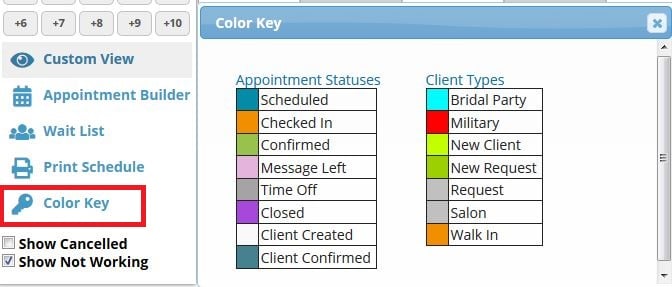
All client appointments within Rosy are color-coded to show status and client type at a glance. A key to the color codes is available by clicking the Color Key button on the left of the Schedule screen. The color codes are defaulted for both appointment status and client type but may be changed to suit your preference.
You can change the color key on your appointment status if desired, so it’s easy to recognize confirmations and check-ins. You can also add color-coded client types so it’s obvious when you have a new client or walk-in, even knowing when to offer a military discount. It’s up to you how you’d like to assign, even adjust, a color.
Custom Service Times
You can customize the service times and prices for select clients. Whether they have very thick hair and take longer than usual for a haircut or have less hair and color services requiring less time and product, you can set or edit a Custom Service Duration or Price from the Client Profile.

Custom Service Durations/Prices
Client Notes
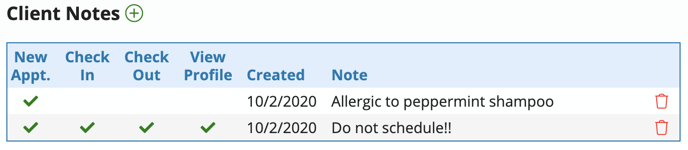
Keep your salon or spa running smoothly and enhance the client experience by communicating internal information using Client Notes. There are two types to consider: Client Notes and Appointment Notes. Client Notes will pop up or display on specific designated pages, while Appointment Notes do not pop up but are displayed only when viewing a client’s single appointment.
Online Booking
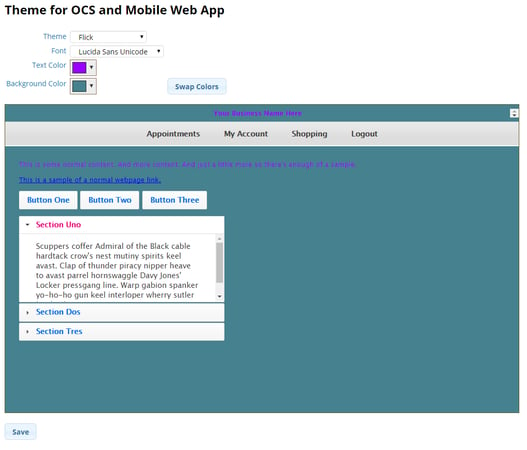
Online Client Scheduling (OCS) and Online Booking (coming soon) allow your clients to schedule their own appointments and view their records online, 24/7. You can customize the user experience by setting whether or not your clients can create their own accounts, how many hours in advance they can schedule, if they can book multiple services and in what order, and more. You can also set which service providers take bookings online and add a directory with a photo and description for each employee. Then, personalize your page by adding your logo and then choosing a theme.
Online Client Scheduling Settings
Ticket Fees
Adding custom ticket fees for Green Circle, PPE, and other processing or convenience fees to your service and retail tickets is simple. With a simple setup, you can apply a set dollar amount or percentage of sales to show on the ticket itemized under fees. It’s a great way to help recover business costs without raising service or retail prices.

Service or Retail Discount per Client
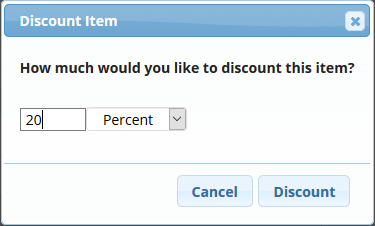
You can easily add a one-time or standing percentage or dollar amount discount for a specific client for either services or retail.
eCommerce Store
There are many ways you can customize your Online Store using custom theming features. This process will allow you to choose from several theme types, upload your logo, personalize your header images, copy, and links, highlight brands, give your own flair to your store category images, and connect all of your business, booking, and social media links in the footer.

How do I customize my Online Store?
Looking for other ways to customize Rosy? Try these:
Remind your clients about pre-appointment preparations, upcoming events, construction around your business, etc. Take a few moments to tailor your cancellation policy, Online Client Scheduling (OCS) login message, email itineraries and confirmations, email ticket receipt message, and client text check-in message.


Leave a Reply